2. Service dashboard
To access the Services section, you need to click on the relevant menu item.
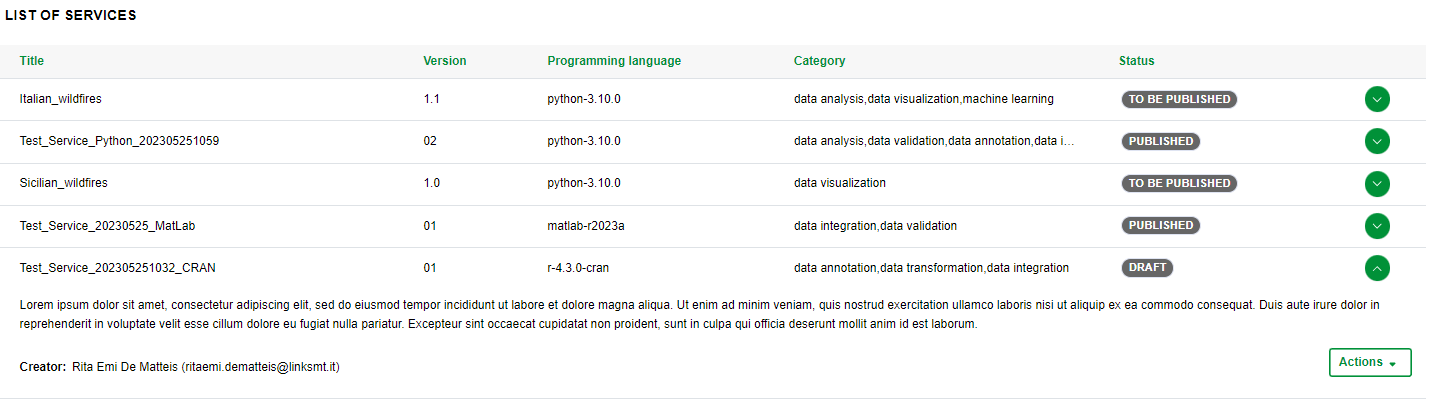
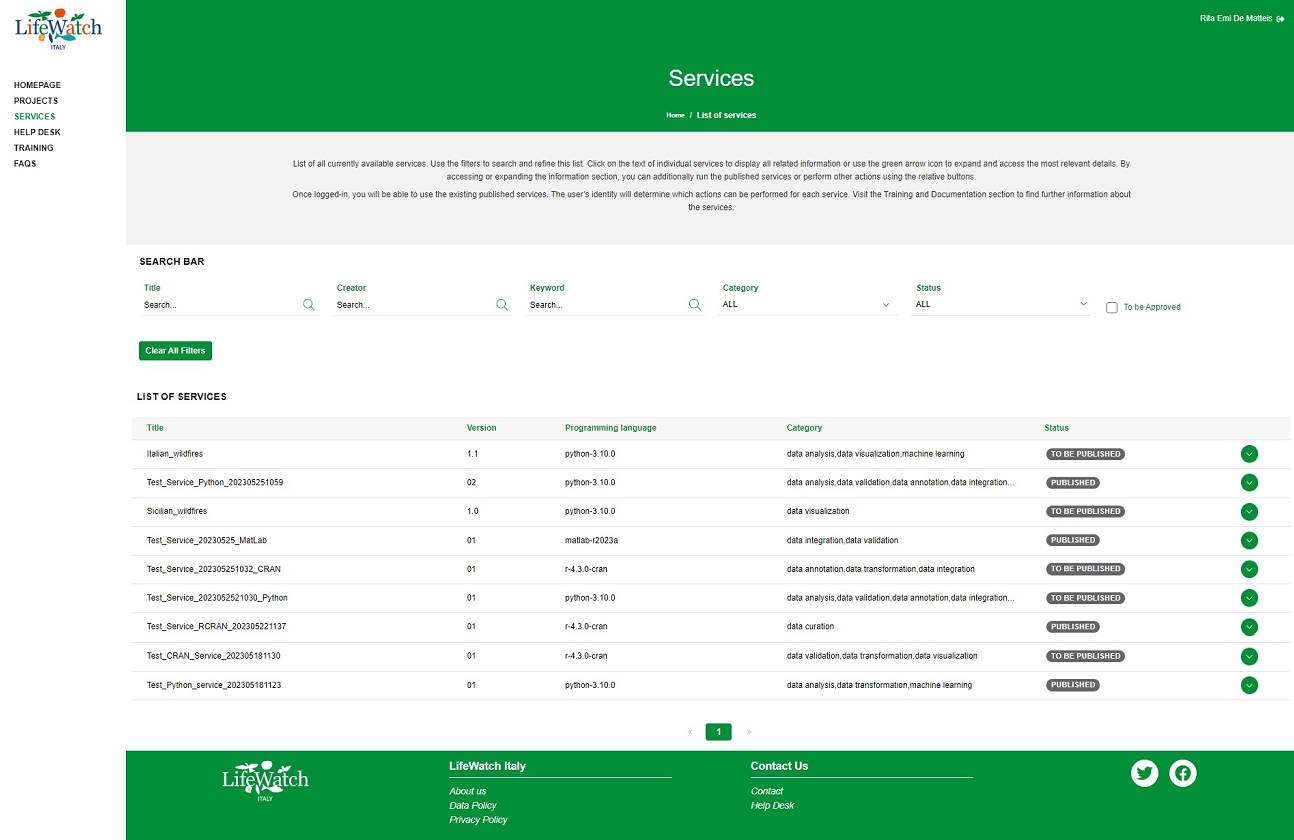
The List of Services page is organized into two sections:
- the first dedicated to search bar(not dependent on the role);
- the second containing the list of services for which is allowed to display depending on the user’s role. Further details are described in this paragraph.
2.1 Search bar
The filters foreseen about these fields are:
- Title
- Creator
- Keyword
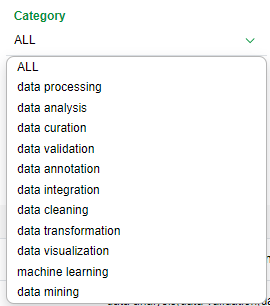
- Category
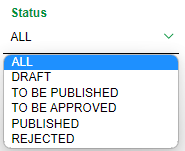
- Status
- for the filter "Title", "Creator" and "Keyword", the system performs a case-insensitive search for items in the list; it is enough typing some characters in the input field to search, as shown in the example below:

- for the other two (Category, Status), the system allows you to filter the options in the drop-down menu to quickly find something; it is needed a click open the dropdown menu and select one or more items to search, as shown in the example below:
|
|
To remove the filter(s) previously inserted, you need to:
- click on relevant icon in the input field to remove one filter or click on button Clear all filters to remove all filters entered.

2.2 List of services
As anticipated, the list of sevices (filtered by role) is viewable by all users who access to the platform; in particular, please note that:
- if the user is not logged in, only services published are displayed
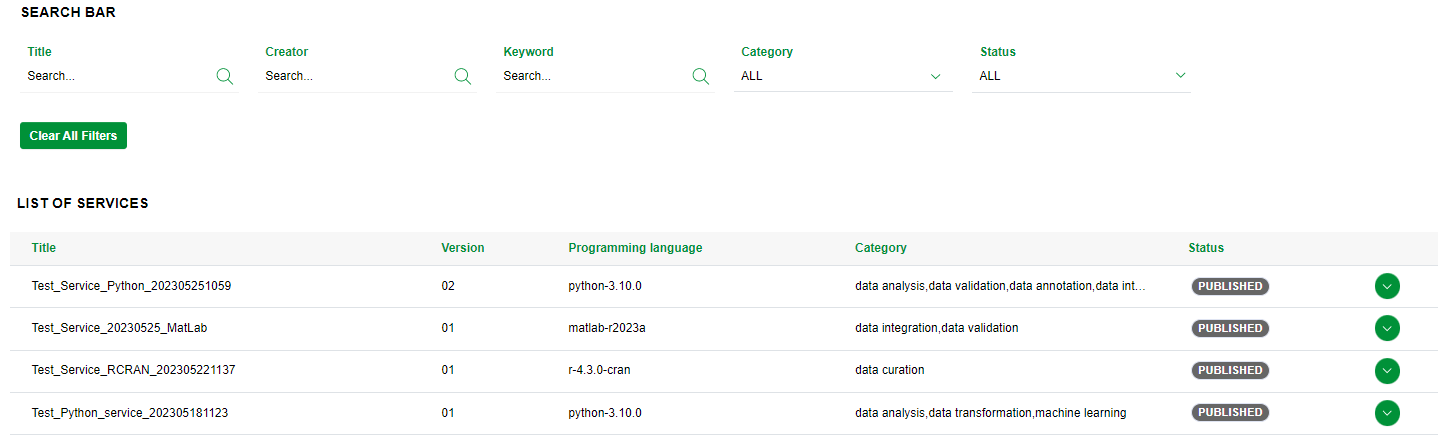
- if the authenticated user has Researcher role, all services createdare displayed
- if user logged has Administrator or Reviewer role, all services created within platform are displayed.
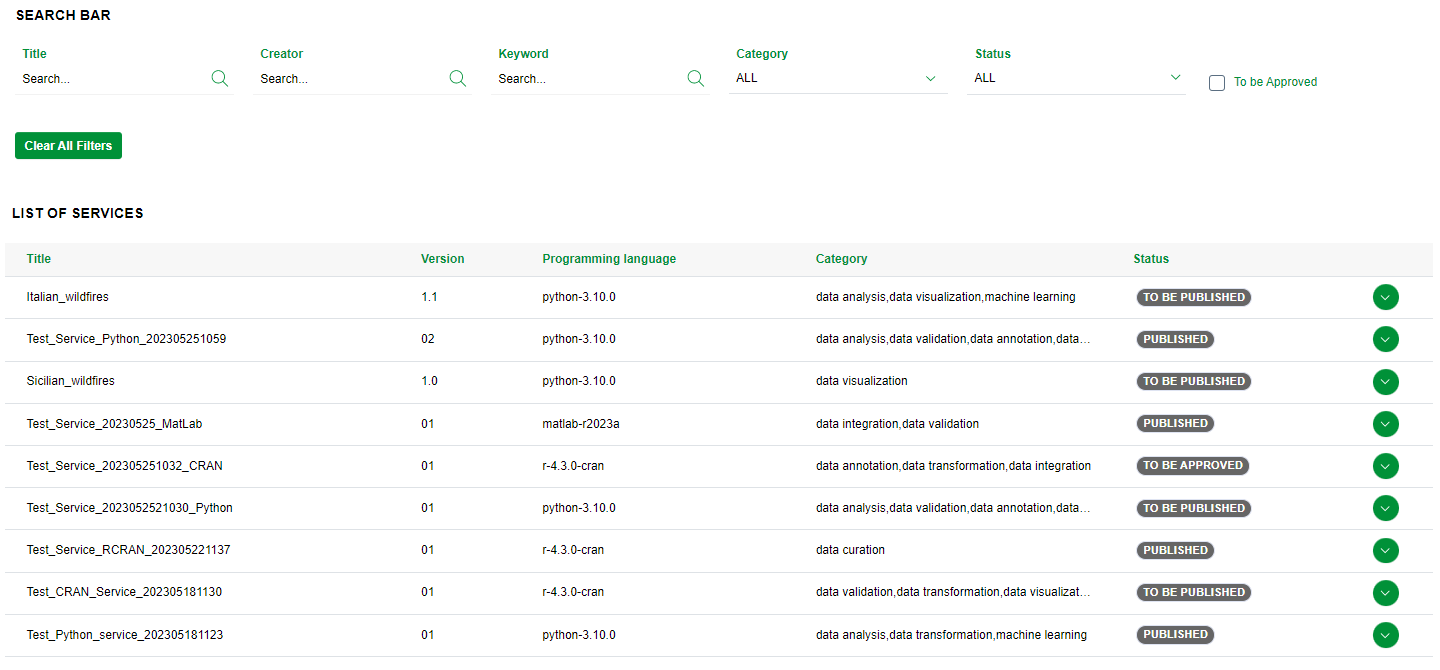
In addition to data previously detailed for the homepage, in the table of the List of Services is shown also:
- Status: field that indicates whether the Integrated Development Environment (IDE) is being run, specifically:
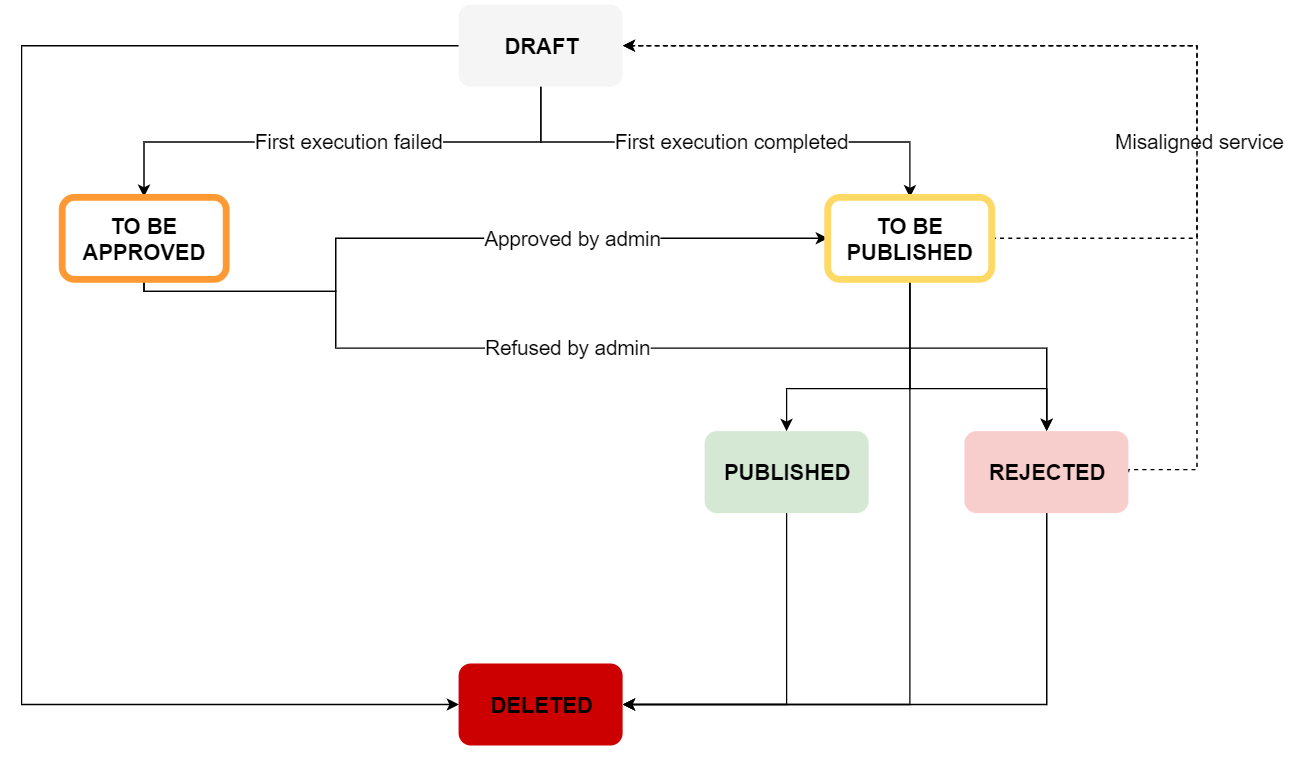
- Draft: the service has been created and the "default" execution is running
- To be published: the service is ready to be published since the default execution is successfully completed
- To be approved: the service has to be approved since the default execution is unsuccessfully completed
- Published: the service has been published
- Rejected: the service has been rejected
- Deleted: the service has been deleted
Hereafter, a representation of the service flow:
2.3 Actions bar
As already anticipated in the Homepage paragraph, if you click on the button for opening the accordion, the system allows viewing of some fields (Abstract and Creator) and the action bar which collects the actions available for the service depending on the user’s role.