3. Use cases
3.14 Libraries installation
As a first step, you can check if the library needed is already available in default installation. You can use the common commands for importing a library and execute the cell to check the availability in default installation. For example:
- if Python environment: import library_name
- if R and R-CRAN environment: library(library_name)
- if MATAB environment: import PackageName.ClassName
If some library is not available there are specific scenarios for each template:
In Python and R-4.2.2: you can check the list of libraries available for automatic installation in the conda default channel (conda-forge) by consulting the following link: https://anaconda.org/conda-forge/repo.
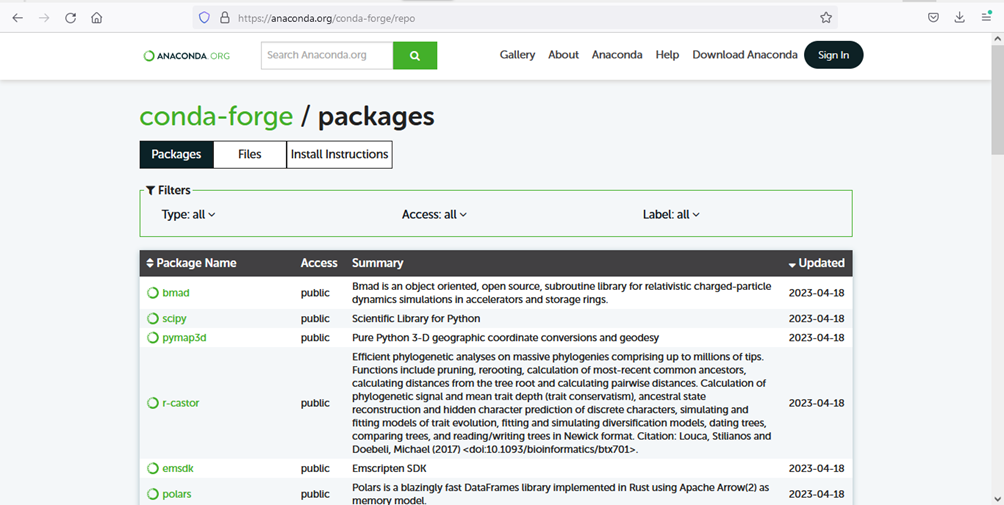
Figure 41 – Conda-forge repository.
To install new libraries needed by the main script to run, list them in the:
install.conda file for the libraries from conda
Sometimes the specific version of library could be not present in conda but could be present in Ubuntu package management apt. In this case it need to modify:
Install.apt file in the work folder for the libraries from Ubuntu package management apt
Double click on the choosen file to open and to modify it. Make sure to list every library, one for each line, indicating a version if necessary.
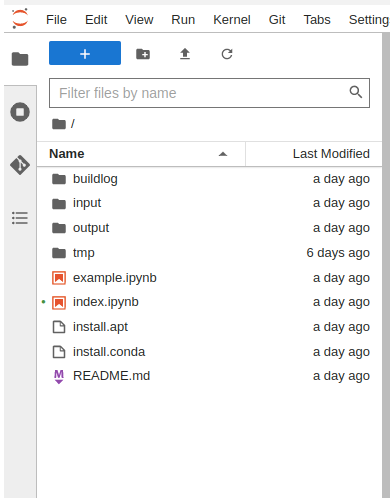
Figure 42 – install.conda and install.aptfile
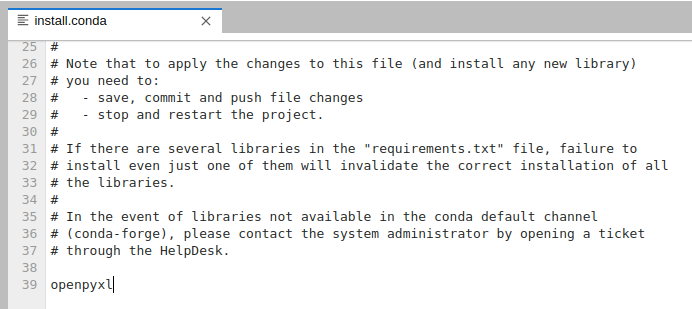
Figure 43 – Example of install.conda and install.apt file for a Python project
Please note: to apply the changes to this file (and install any new library) you need to:
- save, commit and push file changes
- stop and restart the project.
If there are several libraries in the "requirements.txt" file, failure to install even just one of them will invalidate the correct installation of all the libraries.
Errors information is available on the “Warnings and alerts” accordion in the Project Detail view.
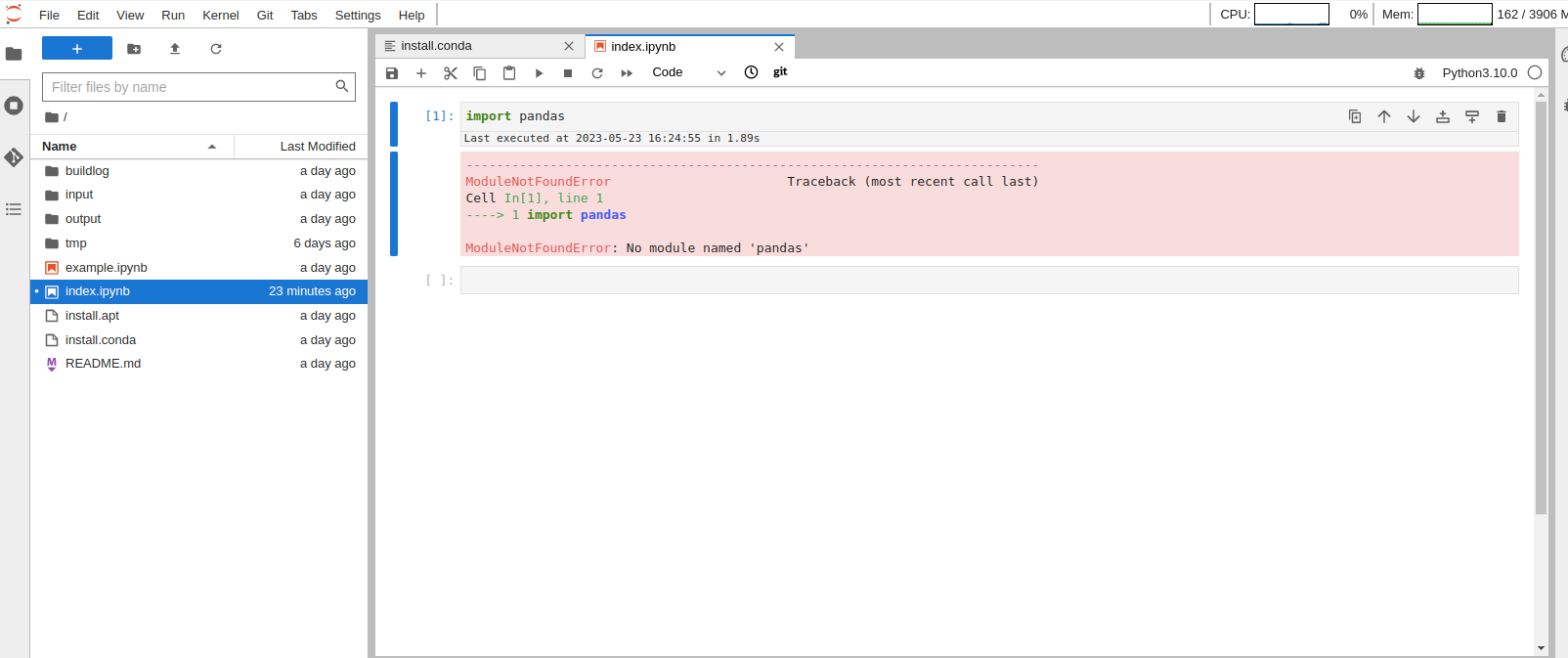
Figure 44 – Libraries installation – example of error message
In the event of libraries not available in the conda default channel (conda-forge) or in the Ubuntu package management (apt), please contact the system administrator by opening a ticket through the HelpDesk.
In R-4.3.0-CRAN environment: there are two files to configure the libraries
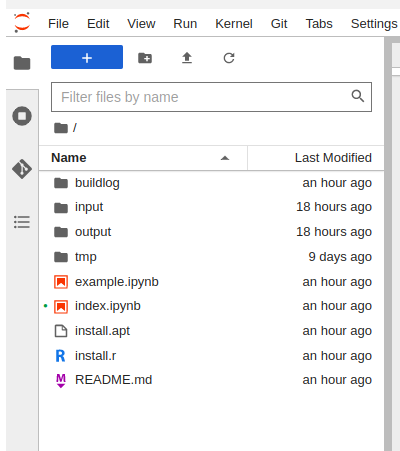
Figure 45 – install.apt and install.r
install.apt file for the libraries from Ubuntu package management apt which includes the CRAN packages as well. The libraries installed from this file are alredy compiled in the package management.
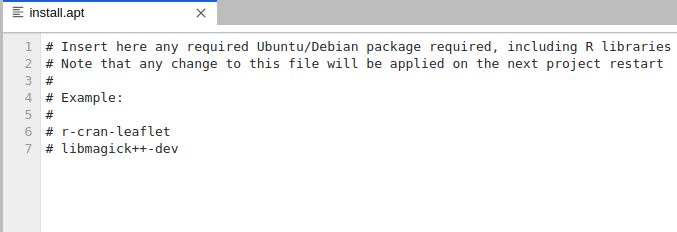
install.r file that can be used to install libraries througth R commands. The libraries installed from this file requiere to be compiled, then on the next run during the build phase it will require more time to compile the libraries configured. It is needed when the library is not already present as compiled in the Ubuntu package management apt.
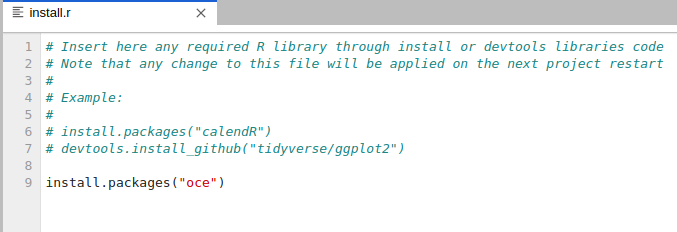
Please note: to apply the changes to this file (and install any new library) you need to:
- save, commit and push file changes
- stop and restart the project.
If there are several libraries in the "requirements.txt" file, failure to install even just one of them will invalidate the correct installation of all the libraries.
Errors information is available on the “Warnings and alerts” accordion in the Project Detail view.
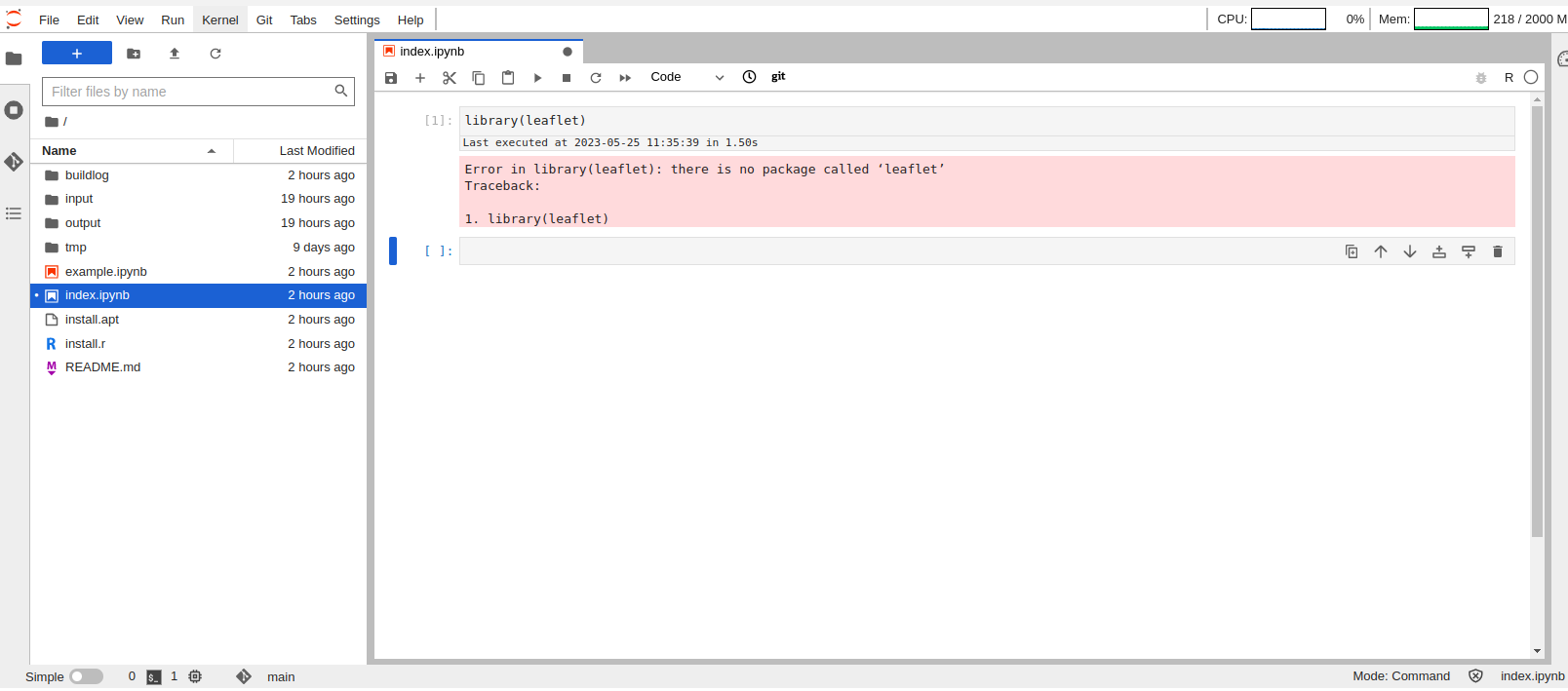
In MATLAB environment: to add additional library there is one file which retrieves the defined packages from Ubuntu package management apt.
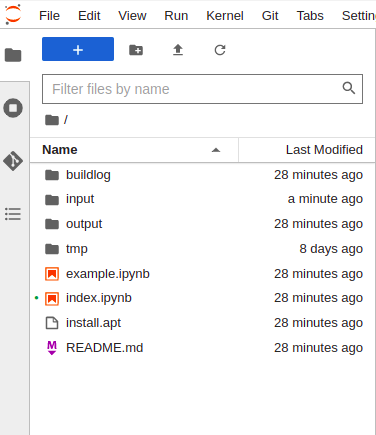
Figure 46 – install.apt
install.apt file for the libraries from Ubuntu package management apt. The libraries installed from this file are alredy compiled in the package management.
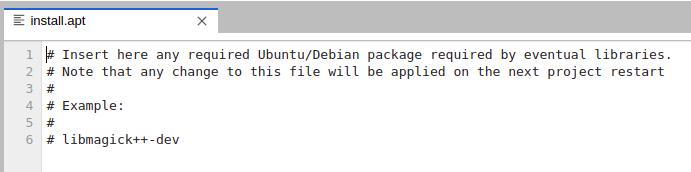
Please note: to apply the changes to this file (and install any new library) you need to:
- save, commit and push file changes
- stop and restart the project.
If there are several libraries in the "requirements.txt" file, failure to install even just one of them will invalidate the correct installation of all the libraries.
Errors information is available on the “Warnings and alerts” accordion in the Project Detail view.